What You Need to Do for This Represent Hoodie Screening
If your goal is to keep a few items from fashion-reps' Represent hoodie candidates that are worth further verification, the division of labor between the on-site spreadsheet and Google Sheets is not either/or; they address "discovery" and "organization" separately. The former is for browsing brands, categories, product cards, visible specs, and QC images, while the latter is for building your own evidence sheet to record colors, sizes, image status, source time, and pending confirmations.
The specific tasks for this screening are: first, find accessible Represent hoodie candidates on fashion-reps, then record each candidate's product name, page specs, visible images, QC entry, and external purchase link status, and finally decide whether to keep, supplement evidence, or postpone ordering. 📋
This method is suitable for people who need to compare multiple candidates, worry about missing information, or want to review with others. It is not suitable for using Google Sheets as proof of product authenticity, nor for inferring stock, size fit, actual fabric feel, or final price without current page evidence.

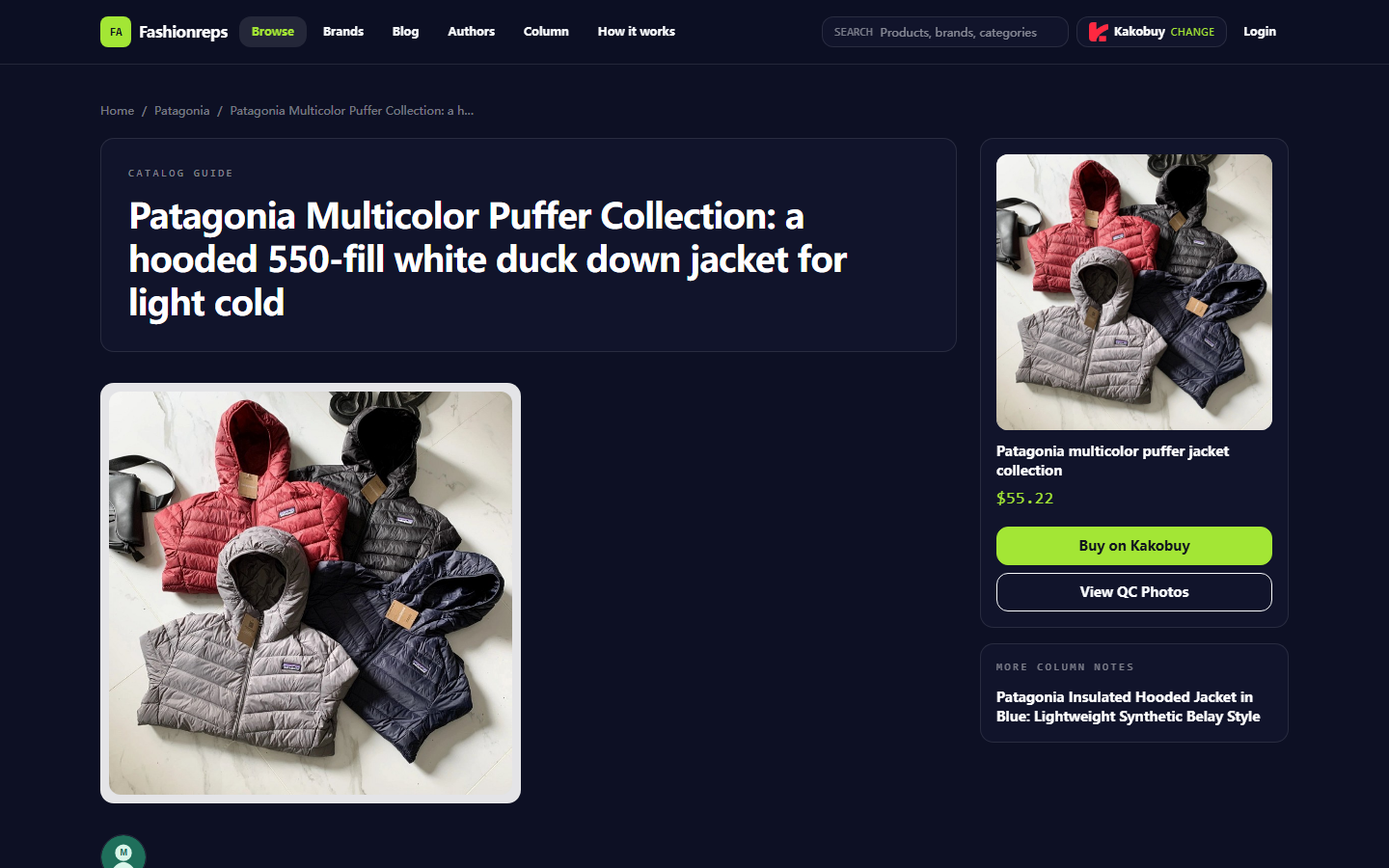
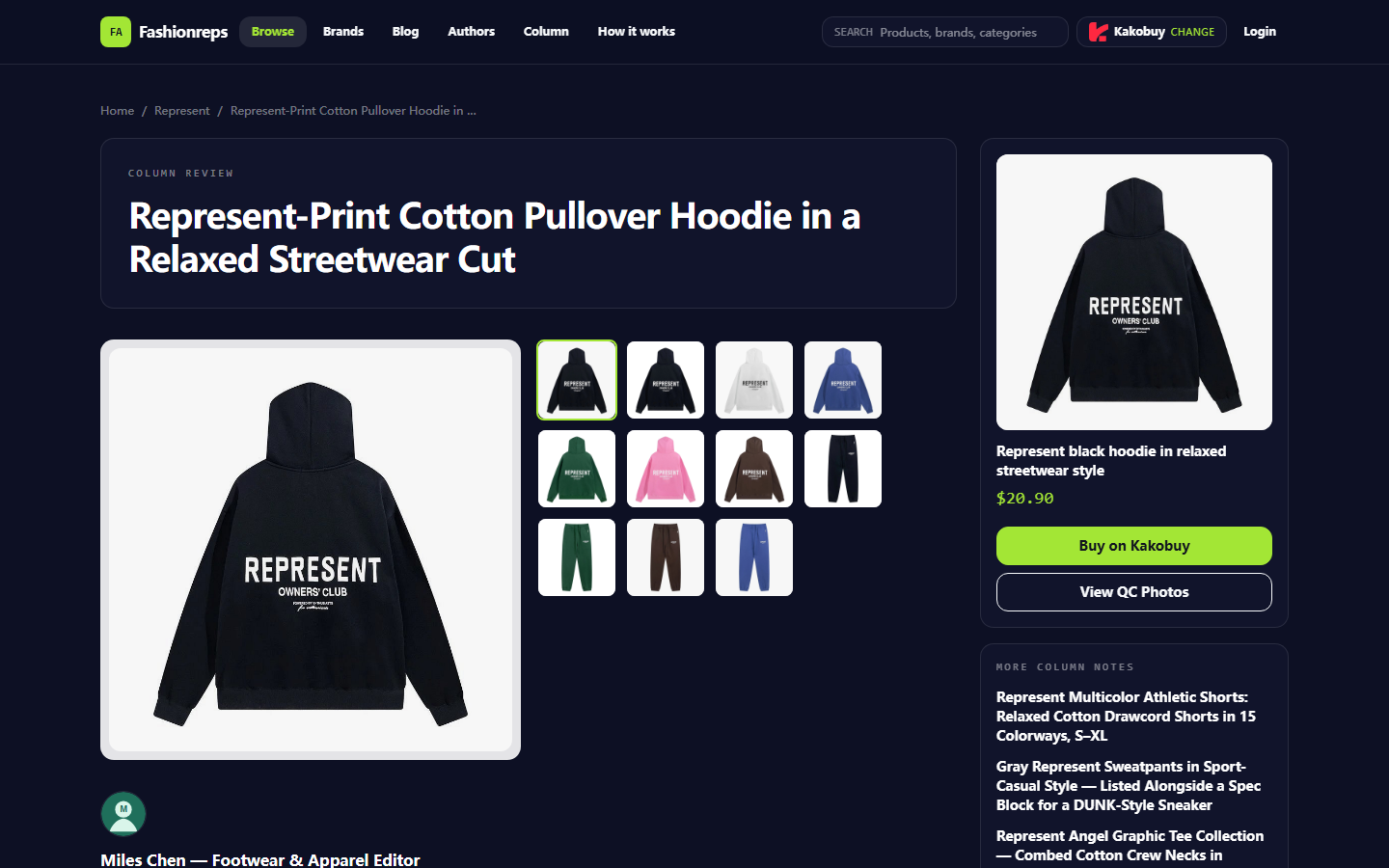
Image: fashion-reps product pages provide product cards, visible specs, purchase platform options, and QC image entry; your records should be based on what is actually displayed on the current page.
How to Confirm Brand, Category, and Visible Links in the On-Site Spreadsheet on fashion-reps
After entering fashion-reps, first use brand or category navigation to narrow down the range, then view product cards, rather than copying all candidates into a sheet at the beginning. In the page navigation, you can see brand browsing entry, product search entry, blog, and operation guides; product pages usually display product name, brand classification, reference price, spec summary, and purchase platform buttons.
When confirming Represent candidates, it's recommended to check in the following order:
- Does the product name clearly include Represent or a corresponding style description?
- Is the page an accessible product detail page, not a blank page, tag-only page, or invalid page?
- Does the product card or detail page provide enough information for further checking, such as material, weight range, fit, color, size, or thickness description?
- Does the page show a visible purchase entry, and does the purchase platform selector open properly?
- Does the product page provide a QC Photos entry, or does it clearly state that there is no independent buyer feedback or QC record for this product?
- Is the price on the page marked as a reference price, and understand that the final product price, service fee, and international shipping need to be confirmed on the selected shopping agent platform?
The advantage of the on-site spreadsheet is that it puts the product catalog and browsing path together. You can first judge from the product card whether a candidate is worth opening, then enter the detail page to view the full description. This is suitable for discovering candidates, especially when you don't yet know which fields to compare.
But the product catalog does not automatically resolve evidence conflicts. For example, a certain Represent printed hoodie page has inconsistent information: the attribute says "no hood" while the description mentions "with hood." This situation cannot be resolved by filtering in a sheet; you should record it as "needs confirmation from seller" and keep both statements from the original page. ⚠️
How Google Sheets Records Color, Size, Images, and Source Time
Google Sheets is more suitable for building your own verification ledger. It is not responsible for discovering products, nor can it replace the product detail page; its role is to arrange multiple candidates according to the same set of fields, making it easy to filter missing evidence, assign review tasks, and keep update times.
It is recommended to set up at least the following fields:
- Candidate ID: Create a stable ID for each product to avoid difficulty in matching when product names change.
- Product Name: Copy the full name currently displayed on the page, do not shorten it into a potentially confusing abbreviation.
- Brand and Category: Record the brand and hoodie category shown on the page.
- Color: Record the colors listed on the page; do not merge colors that look similar in images.
- Size: Record the size range clearly listed on the page; if there is no size chart, write "not provided," do not infer suitable height and weight.
- Material and Weight: Record page fields separately; do not expand descriptions like 100% cotton, weight range, or "regular thickness" into unproven durability conclusions.
- Hood Status: If attributes and description conflict, fill in "conflict, pending confirmation," rather than choosing one as the final fact.
- QC Images: Record whether there is a QC image entry, whether the images can be opened, and which specific style the images correspond to.
- Page Status: Accessible, redirected, 404, insufficient information, or pending review.
- Reference Price and Currency: Record the amount displayed on the page, and note whether this is a reference price or the amount confirmed by the shopping agent.
- Source Page: Save the page URL; the system will handle the link after saving, no need to manually add links in the article.
- Verification Date: Record the date of this viewing to avoid treating old stock, old prices, or old links as current information.
- Next Step: Keep candidate, contact seller, supplement QC photos, recheck page, or postpone ordering.
You can use the following simplified structure to start organizing:
| Check Area | What the On-Site Spreadsheet Does | What Google Sheets Records |
|---|---|---|
| Discovering candidates | Browse by brand, category, search, and product cards | Candidate ID and initial screening status |
| Product info | View public name, specs, images, and reference price on the page | Color, size, material, weight, fit, and other fields |
| Image evidence | Open product images or QC image entry | Whether images are accessible, which variant they correspond to, verification date |
| Purchase path | View purchase platform selector and product buttons | Page status, pending confirmations, and next actions |
| Collaborative review | Provide a unified product page entry | Assign responsible person, record conclusions, and reasons for keeping |
If you only need to temporarily compare two or three candidates, switching directly between website pages may be faster; when there are more than a few candidates, or when you need to repeatedly check colors, sizes, and images, Google Sheets' structured records are more valuable. ✅
Step-by-Step Comparison: Browsing Product Cards vs. Filtering in Sheets
Step 1: Build a Candidate Pool on the Website First
Enter the product list from the Represent brand or hoodie category, and prioritize candidates with complete page information, clear product names, and accessible links. Do not skip spec and image checks just because a product title contains a popular keyword.
For each candidate you open, complete three initial screenings:
- Can the page be accessed normally and display product details?
- Are there visible fields sufficient to support further comparison?
- Is there a purchase entry or QC image entry for continued verification?
If any of these three items is clearly missing, mark it as "insufficient evidence" first, and do not add it to the priority list immediately.
Step 2: Transcribe Page Facts into Google Sheets
Only record information explicitly stated on the page. For data not provided, use "not provided"; for conflicting data, use "conflict"; for images or links that cannot be opened, use "invalid" or "cannot verify." This approach makes it easier for collaborators to spot issues than leaving blanks.
For example, if the page shows S, M, L, XL, and lists several colors, record these visible options; if the page does not provide flat measurements for chest, length, and sleeve, do not fill in specific numbers based on common sizing experience. If the product description mentions a hood but the attribute table says no hood, keep both original pieces of information and set the action column to "confirm specific variant with seller."
Step 3: Use Filter Views to Arrange Review Order
You can create filter views based on the following conditions:
- First look at candidates with "page accessible, but QC images not confirmed."
- Then look at candidates with "incomplete color or size information."
- Separately view candidates with "page information conflicts."
- Finally, review candidates that have completed page checks but still need to confirm shopping agent fees.
The purpose of filtering is not to assign a false overall score to products, but to help you find the most clear next action. Google Sheets allows collaborators to separately handle link checks, image checks, and spec recording, but each person should note in the remarks which page and date the evidence comes from.
Step 4: Go Back to the Original Page to Recheck, Don't Just Trust Copy Results
Sheets are good for organizing, not for being the sole evidence. After completing a round of recording, go back to the original product page to check that the product name, image entry, and specs still correspond to the same candidate. Pay special attention to confusion among color changes, different size variants, and different seller pages.
If the page redirects, shows empty content, or the purchase entry no longer works, update the page status instead of continuing to use old records. 🔎
How to Verify Page Specs, QC Images, and External Links Separately
These three evidence levels should be recorded separately:
Page specs answer "what the page says," such as material, weight range, thickness, color, and size. It cannot alone prove that the actual received product fully matches the description.
QC images answer "whether there are visible inspection images related to a specific product or variant." Having QC images does not prove all details are qualified; you need to confirm whether the images correspond to the current style, are clear, and show the areas relevant to the current issue.
External links answer "whether the next step can lead to the shopping agent or seller page." A link being accessible does not mean stock, price, shipping, or after-sales conditions are confirmed. The purchase platform page may still require login, region selection, or product submission before showing final costs.
For Represent hoodies, it is recommended to separately mark the following situations:
- Product images exist, but do not clearly correspond to a color or size.
- The page lists sizes, but has no flat measurement data.
- The page has a reference price, but does not show service fees, international shipping, or taxes.
- The page has a QC entry, but currently no usable images or images do not correspond to the target variant.
- Product description conflicts with attribute fields on hood status, print position, or style name.
Only when these issues are supplemented with evidence, or explicitly accepted as purchase risks, should a candidate move to the next step. Do not use other sellers' reviews, fabric information from another Represent product line, or sizing experience from official brand styles to replace specific evidence for the current candidate.
Mobile Quick Discovery vs. Desktop In-Depth Organization: Boundaries of Use
Mobile is more suitable for quick discovery of candidates: open the brand page, browse product cards, view titles and main images, and save pages that need desktop review. Mobile browsing should not involve heavy field entry, because long specs, image variants, and link status are easily missed.
Desktop is more suitable for in-depth organization: open product pages and Google Sheets side by side, and fill in colors, sizes, images, source time, and pending questions item by item. When collaboration is needed, desktop also makes it easier to view filter views, notes, and revision history.
A practical division of labor is:
- Mobile stage: discover candidates, exclude obviously invalid pages, record page URLs and initial notes.
- Desktop stage: check complete specs, confirm QC image entry, fill in source date and evidence status.
- Review stage: go back to the original product page to check conflicting fields, and decide to keep, supplement evidence, or postpone.
Do not treat the main image seen on mobile as evidence of color, fit, or material. Screen display and image compression may change the perception, and the product page text may differ from the image display range.
Stop Conditions When Evidence Is Missing, Links Are Invalid, or Variants Are Incomplete
When the following situations occur, you should pause further comparison or ordering:
- The product page is inaccessible, and there is no verifiable new page.
- The page only has a title or images, without enough public specs to support screening.
- The target color or size is not clearly listed, and cannot be confirmed as part of the current variant.
- QC images are invalid, cannot be opened, or cannot be determined to correspond to the product style.
- Product attributes and description conflict, and the seller has not confirmed.
- Reference price exists, but the shopping agent's service fee, international shipping, taxes, or other applicable conditions have not been confirmed.
- You need accurate fit judgment, but the page has no measurement data and no seller response has been received.
Stopping does not mean the product is bad; it means the current evidence is insufficient to support the next decision. Writing "postpone" instead of filling in guesses in the sheet makes it easier to resume work, and prevents collaborators from mistaking unverified content for confirmed facts.
Final Actions: Keep Candidate, Supplement Evidence, or Postpone Ordering
After completing a round of website browsing and sheet organization, keep only one clear next step for each candidate:
- Keep candidate: page accessible, key information basically complete, main risks recorded, and you are willing to continue confirming shopping agent fees and variant details.
- Supplement evidence: page has potential value, but lacks size measurements, QC images, color correspondence, or seller confirmation.
- Postpone ordering: link invalid, field conflicts unresolved, target variant incomplete, or final fees and after-sales conditions still unconfirmable.
This division of labor saves time by avoiding repeated searching and repeated data entry, but it does not guarantee lower product prices. It will increase some organization costs, and will help you see evidence gaps earlier. It is suitable for people who need to compare multiple Represent hoodie candidates, collaborate with others, or want to keep traceable records; it is not suitable for people who only want to order immediately based on main image and title.
If a candidate can only rely on guesswork to fill in size, material, hood status, stock, or final fees, do not use the sheet to disguise uncertainty as complete information. Supplement evidence first; if you cannot, postpone. That is the most important stop condition when using the on-site spreadsheet and Google Sheets together.
Frequently Asked Questions About Shopping on Agent Platforms
1. How do I view QC photos on bbd-buy.org?
When viewing QC photos, you should pay attention to the specific characteristics of the item you purchased. For shoes, for example, you need to check several key parts - such as the toe box, heel, and tongue - to check stitching, shoe structure, and tongue thickness, to confirm whether it is a high-quality pair. For clothing, you should check details such as the neck label, logo embroidery, fabric, and the flatness of the collar and cuffs.
2. How can I judge the quality of products on bbd-buy.org?
To assess product quality, look at QC photos - don't rely only on factory photos, as these are often retouched. Use QC photos to confirm whether the product meets your specific requirements for details before deciding to actually purchase.
Also remember that you should avoid buying items at extremely low prices, as they are usually not of good quality.
3. What types of products can be found in the bbd-buy.org spreadsheet?
The bbd-buy.org website spreadsheet covers shoes, clothing, bags, accessories, jerseys, perfumes, hats, scarves, belts, and various household items.