Introduction
If your goal is to sort through fall/winter clothing candidates from the NANGA catalog on fashion-reps.net, the real issue isn't "which tool is more advanced," but how to organize the brand, category, images, and detail page information that's browsable on the site into a list that remains easy to review later.
This article revolves around a specific task: first confirm NANGA candidates in the site catalog, then use Google Sheets to record styles, colors, sizes, links, and items to verify. The verification was done on October 21, 2026, on the visible NANGA brand page; prices, stock, product details, and external purchase processes may change, and purchase conclusions cannot be made solely from catalog content. 🧭

Defining the Specific Task of Nanga Fall/Winter Clothing Category Search
This screening is suitable for readers who need to:
- Find fall/winter clothing candidates in the NANGA brand catalog
- Create reviewable records by style, color, size, and notes
- Keep product detail page links for later image and status checks
- Distinguish between information already shown on the site and information that still needs confirmation from the purchasing platform
We should also clarify cases where this doesn't apply: if you need to confirm real-time inventory, final transaction price, material feel, actual loft, shipping time, or destination country taxes, just looking at the brand catalog and Google Sheets is not enough. The site catalog is good for discovery and initial screening, the spreadsheet is good for organizing and comparing, but neither can replace real-time confirmation from the order page or purchasing platform.
The minimum result of this task should be a candidate table, not an article that just lists keywords. Each row should correspond to at least one product detail page and answer three questions: what is it, what has been recorded so far, and what still needs to be verified next. 📋
Verifying Categories, Brand, and Image Links on fashionreps Site Spreadsheet
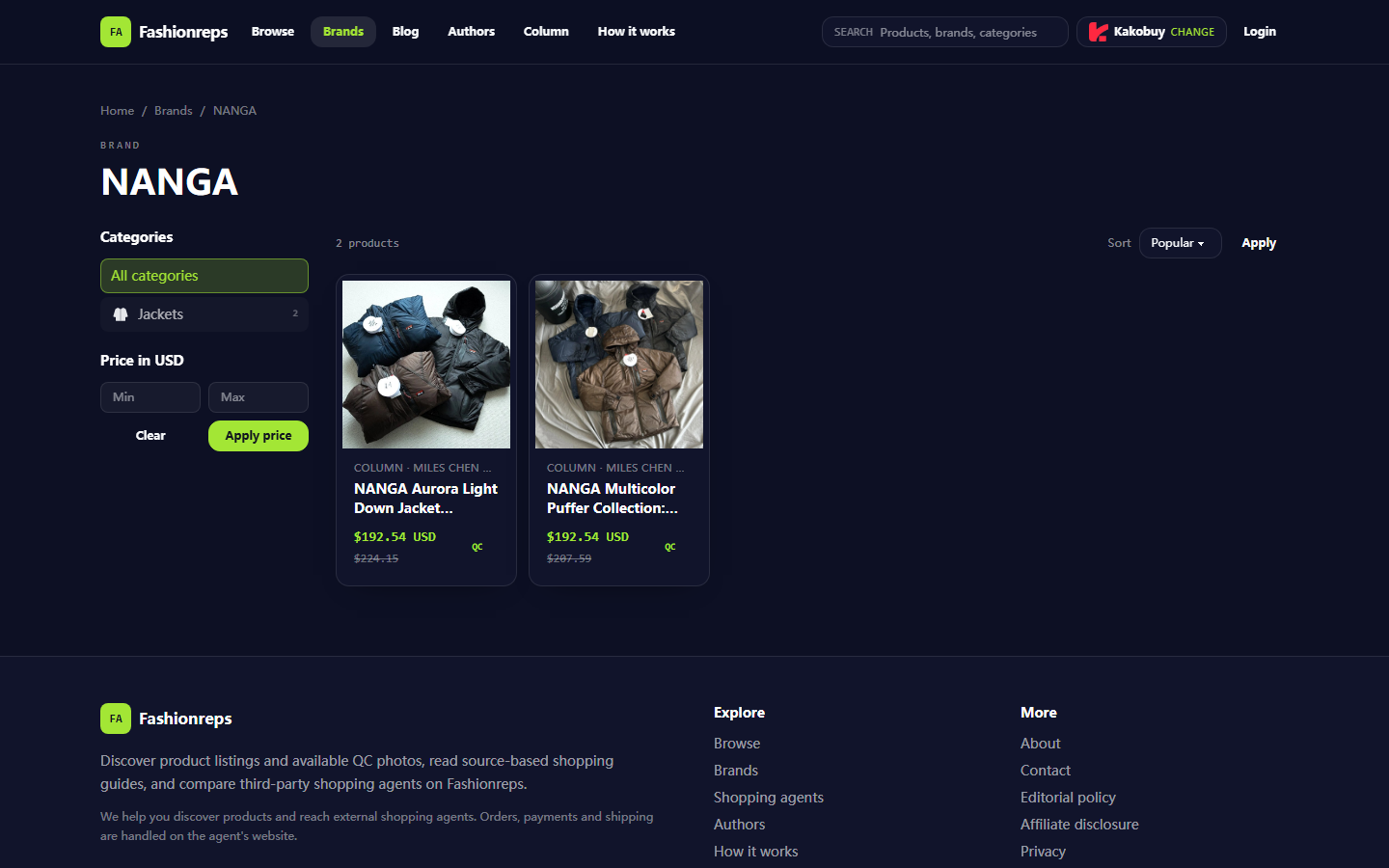
On the fashion-reps.net NANGA brand page verified on October 21, 2026, the page displays the path as NANGA under the brand catalog, with Jackets visible in the category filter, and the page shows 2 products. The page also provides price range input, sorting options, and product card links.
Visible candidates include:
- NANGA Aurora Light Down Jacket Mikami: visible description includes 15dn AURORA TEX LIGHT Shell and 860FP Polish Goose Down, reference price shown as 192.54 USD, original reference price shown as 224.15 USD
- NANGA Multicolor Puffer Collection: visible description includes 10d Grid Nylon Shell and 220–260g of 90 Duck Down, reference price shown as 192.54 USD, original reference price shown as 207.59 USD
This text is visible information on the catalog page and can only serve as initial screening fields. It cannot directly prove current stock, actual composition, warmth performance, available sizes, or final payment amount. Prices should also record the verification date and currency to avoid mistaking reference prices for settlement prices.
The advantage of the site spreadsheet is a shorter discovery path: first enter the brand page, then view categories, product cards, images, or QC links, and finally enter the detail page. For those who just want to quickly browse a small number of candidates, this path is usually more direct than designing a complex spreadsheet first. 🔎
Using Google Sheets to Set Up Style, Color, Size, and Notes Fields
Google Sheets is better suited as a second-layer workbench. It doesn't replace the site catalog but organizes scattered information from multiple detail pages into unified fields.
We recommend setting up the following columns:
- Brand: Fill in NANGA
- Product Name: Keep the visible name from the site
- Category: For example, Jackets; don't expand into categories not shown on the site
- Visible Description: Record fabric, fill, or structure text that appears on the page
- Reference Price: Keep the USD label
- Price Verification Date: Fill in the date of this check
- Color: If the page doesn't show it, write "No clear information"
- Size: If the page doesn't show it, write "To be verified on detail page"
- Product Detail Page: Save the product link
- Image or QC Link: Save a reviewable image-related link
- Link Status: For example, "Catalog opens, detail to be verified"
- Update Time: Only fill in if the page clearly shows it
- Items That Cannot Be Inferred: Inventory, material feel, warmth, final cost, etc.
- Next Step: Write what needs to be confirmed by opening the detail page, purchasing platform, or customer service
Color and size fields are especially prone to errors. If the product name doesn't specify a color, don't guess based on the main color of the image; if the catalog doesn't have a size chart, don't treat common size ranges as the actual available sizes for that product. ✍️
Step-by-Step Comparison of Site Category Browsing vs Spreadsheet Filters
| Usage Stage | fashion-reps Site Spreadsheet | Google Sheets | Suitable Actions |
|---|---|---|---|
| Discovering Candidates | Browse brand, category, and product cards | Not suitable for discovering pages from scratch | Find NANGA product links |
| Initial Comparison | View visible images, names, and page descriptions | Use filters, sorting, and notes for unified comparison | Narrow down candidates |
| Detail Verification | Open detail page and check visible info | Record verification results and to-dos | Distinguish confirmed vs unconfirmed facts |
| Collaborative Organizing | Mainly provides page links | Good for sharing, commenting, and maintaining status | Keep track for later review |
The recommended path is website first, then spreadsheet, then back to website. First confirm candidates on the brand page, then write necessary fields into Google Sheets, then return to each detail page to supplement color, size, images, and link status. This avoids mistakenly writing unopened detail page content into the spreadsheet.
If there are only two or three candidates, browsing the site directly and making a few notes may be enough; the value of a spreadsheet becomes more apparent when you need to compare multiple colors, sizes, or link statuses simultaneously. Don't create numerous evidence-less fields just to use filters.
Checking Product Detail Pages, Link Status, and Visible Update Times
After initial catalog screening, perform a detail page check for each candidate. We recommend recording in the following order:
- Open the product detail page from the brand page and confirm the page doesn't redirect to an irrelevant page, blank page, or tag-only page.
- Verify whether the product name matches the brand page; if different, keep the actual page name and note the discrepancy.
- Check whether the detail page shows color, size, material, images, QC information, or purchase links.
- Record visible price, update time, or status text, and write the verification date.
- Return to Google Sheets to update link status; don't just keep clues in browser history.
You can use a simple link status grading:
- Catalog opens: The brand page shows this candidate
- Detail opens: The product detail page loads normally
- Image viewable: The page provides images or QC links related to this candidate
- Info missing: The page doesn't provide a required field
- Needs re-verification: The page has redirects, loading errors, or content changes
"Page opens" does not mean "product is purchasable." The purchase process still needs to be confirmed on the actual purchasing platform, including available sellers, payment amount, shipping, inventory, return conditions, and destination country fees. The fashion-reps page itself states that orders, payments, and shipping are handled by the user's chosen external purchasing platform, so these matters cannot be inferred directly from the brand catalog. 🛒
Handling Duplicate Candidates, Category Inconsistencies, and Missing Fields
Duplicate candidates often come from different links, different images, or name variations. Don't delete suspected duplicate rows outright; first compare using product detail page URLs, product names, image links, and page descriptions.
You can add a "Duplicate Check" column in Google Sheets:
- Identical detail page URLs: Prefer merging records, keep notes on different entry links
- Similar names but different detail pages: Keep separate for now, compare images and descriptions before deciding
- Same name but different price or description: Don't assume it's the same product, record the difference
- Only catalog card without confirmable detail page: Keep as a candidate for verification, don't mark as confirmed
When categories are inconsistent, prioritize the category currently shown on the site. For example, if the page shows Jackets, don't change it to "down jacket," "warm coat," or another more specific category just because of the fill or image appearance. Custom categories can be added in a separate column but must be labeled as organizer categories, not the site's original category.
For missing fields, use clear null expressions like "No clear information," "To be verified on detail page," or "Cannot be inferred from catalog." Blank cells can be mistaken for omissions; explicit labels are better for collaboration and later review. ✅
Labeling Inventory, Material, and Warmth Information That Cannot Be Inferred from the Catalog
The appearance of fabric names, fill types, or fill amounts in the catalog does not mean physical inspection has been completed. The following cannot be confirmed solely from the brand page catalog:
- Current inventory and orderable quantity
- All available colors and sizes
- Actual fabric feel, thickness, and wind resistance
- Actual warmth after wearing and suitable temperature range
- Actual fill condition or garment loft
- Final transaction price and whether discounts are still valid
- Shipping, taxes, customs requirements, and after-sales results
When recording, you can separate "page claims" and "need to confirm before purchase" into two columns. For example, the page may record "visible description includes 860FP Polish Goose Down," but the next column should state "cannot infer actual warmth from this; need to verify detail page and purchasing platform info."
If product images are used only for style identification, alt text should describe what the image actually shows and not add unverified judgments like "best," "authentic," or "warmth guaranteed." Images cannot replace size charts, material descriptions, or actual QC records. 🧥
Choosing to Use Alone or in Combination Based on Device and Depth of Organization
For a quick one-time discovery, you can use the fashion-reps site spreadsheet alone: go into NANGA by brand, view the Jackets category, and open a few product detail pages. This method has fewer steps and is suitable when there are very few candidates and no collaboration needed.
When you need to compare multiple fields, we recommend combining:
- Website for discovery, browsing images, opening product detail pages, and confirming page-visible text
- Google Sheets for unified fields, filters, duplicate checks, and to-do status
- Website detail pages for final factual verification
- Purchasing platform for real-time inventory, settlement price, shipping, taxes, and after-sales conditions
When browsing quickly on a phone, the website entry is more convenient; when maintaining multiple candidates on a computer, Google Sheets is better for horizontal comparison. If collaborating with multiple people, keep "verifier," "verification date," and "next step" fields, and avoid putting personal order numbers, full shipping labels, payment cards, or ID documents into a shared spreadsheet.
The final choice shouldn't be based solely on reference price. First confirm the actual benefits of saving or organizing: reducing repeated page openings, lowering the chance of missing fields, making later review faster. At the same time, acknowledge that the combined workflow adds maintenance costs, including updating prices, checking broken links, and handling duplicate records. It suits people who need repeated comparisons, multi-person collaboration, or keeping an audit record; it's not recommended to build complex templates for only two or three candidates, or to fill the spreadsheet with speculative fields without detail page evidence.
Conclusion
The core of this method is not to copy the site catalog into Google Sheets, but to let the two tools handle different tasks: the website for discovery and verification, the spreadsheet for organization and review. For NANGA fall/winter clothing candidates, first record page-visible categories, names, descriptions, and reference prices, then confirm detail pages, images, sizes, link statuses, and update times one by one, and finally list inventory, final cost, warmth performance, and after-sales conditions as items to verify to form an actionable purchase preparation list.