First, confirm what you're checking
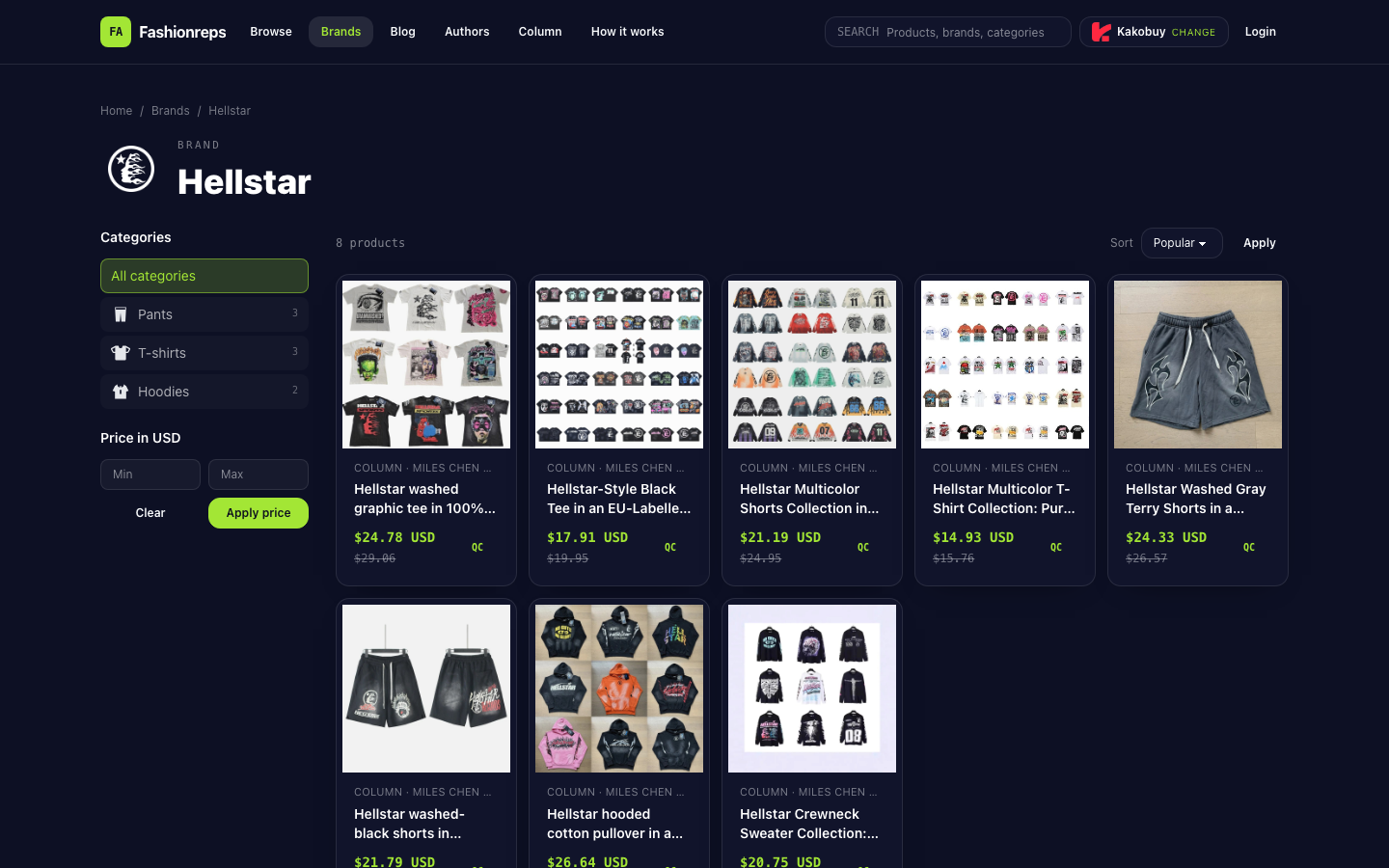
When filtering hellstar products, the easiest mistake isn't finding candidates, but matching the catalog's titles, colors, and sizes to the actual product links. Fashionreps' Hellstar brand catalog shows 8 products on this page, with categories including 3 pants, 3 T-shirts, and 2 hoodies; the page also offers price filtering, sorting, and a QC photos section. The catalog is good for initial screening, but it doesn't replace checking each product's details and variants one by one.

Image: Screenshot of the Fashionreps Hellstar brand catalog page, showing the catalog filter options and product list location.
Step 1: Build a candidate list from the catalog page
First narrow down by product category or price range, then open each product link. Don't just copy the product title, because the same page might include the series name, color description, and size info, and the title's info might not match the specific variant exactly.
It's best to record these fields first:
- Full title from the catalog
- Product category, like T-shirt, pants, or hoodie
- Color or color count description shown in the catalog
- Size range shown in the catalog
- Reference price displayed on the page
- Product detail link
- Whether corresponding QC photos are available
- Date of this check
The catalog shows descriptions at different levels of detail. For example, one washed graphic T-shirt is described as 100% cotton, relaxed boxy fit; another black T-shirt is labeled as EU tag relaxed fit; shorts and hoodie entries show M–XL, S–XL, or multiple color options respectively. These descriptions help you categorize, but you shouldn't treat them as proof that every specific color and size has been verified.
Step 2: Check links and variants one by one
After opening the product detail link, check in this order:
- Does the detail page title still match the product recorded from the catalog, and not another item from the same series?
- Do the color options match the color description in the catalog? If the catalog only says "multiple colors" or "about dozens of colors", don't expand that into a specific color list without confirmation from the page.
- Are the size options consistent with the catalog's size range? If the catalog says M–XL or S–XL, record it only as a range at the catalog level; if the detail page doesn't show selectable sizes item by item, mark it as to be confirmed.
- Do the selected color and size still correspond to the same product link? If the link, title, or image doesn't clearly change after selecting a variant, you can't just assume the relationship based on page position.
- Do the QC photos belong to this product? Having a QC photos section in the catalog doesn't mean every color and size has its own QC evidence.
If you can't establish a clear relationship between the product detail page, color options, and size options, mark that entry as "pause adding to candidates" instead of saving the link first and filling in details from memory later.
Step 3: Keep a reviewable record in Google Sheets
Google Sheets isn't a replacement for the catalog; it's for keeping each check as a filterable, updatable record. You can use these fields:
| Field | How to record | Review focus |
|---|---|---|
| Product title | Paste the full title from the catalog | Does it match the detail page title? |
| Category | T-shirt, pants, or hoodie | Does it match the catalog category? |
| Color | Only record colors explicitly shown on the page | Is there specific variant evidence? |
| Size | Record the size or range explicitly shown on the page | Does it match the selected color? |
| Product link | Save the detail link | Does it still point to the same product when opened? |
| Reference price | Record the price shown at that time | Don't treat it as a fixed final price. |
| QC status | Yes, no, or to be checked | Does it belong to the current product and variant? |
| Missing info | Note issues with color, size, or link | Do you need to go back to the detail page or get proof? |
| Review date | Use the actual check date | Check older records first next time. |
In the sheet, you can use filters to view records that are "to be checked", "link issue", or "missing size", and sort by review date to handle older entries first. When collaborating, put uncertain content in the "Missing info" column rather than having different people guess and overwrite the original record.
When you must go back to the product page
Reopen the catalog or product detail page if any of these happen:
- The catalog title doesn't exactly match the detail page title.
- The catalog only says multiple colors, but your sheet already lists specific colors.
- The catalog shows a size range, but the detail page doesn't show corresponding size options.
- Opening the product link leads to a different product, a blank page, or an unverifiable page.
- The QC photos are just a link without indicating which color and size they belong to.
- The review date is old, and the current page info doesn't match the old record.
The reference price shown in the catalog should only be part of that check's record. Different entries on the page show reference prices ranging from $14.93 to $26.64, and some entries also show previous reference prices; these numbers can't be used to infer stock, shipping, final payment amount, or current purchase status.
When to ask the seller for proof
When the product link works, but colors, sizes, and images can't be matched to each other, you can ask the seller for confirmation. Make your questions specific, like asking whether a certain color is available in a certain size, whether the image matches that variant, or requesting page info that can distinguish the variants.
Before receiving enough evidence, you can keep the record in Google Sheets, but the status should be "awaiting proof", not marked as verified, and it shouldn't be included in the final candidates. If the seller can't provide a clear correspondence, the safest action is to keep the issue description and pause that entry.
A set of status rules for long-term review
You can classify each record into four statuses:
- Initial screening: only confirmed that the entry appears in the catalog.
- To be checked: link saved, but color, size, or QC correspondence not yet completed.
- Verified: product link, specific variant, and available evidence all match each other.
- Paused: link invalid, conflicting info, or missing key evidence.
Only records marked "Verified" should go into the subsequent candidate list. On the next review, prioritize "To be checked" and "Paused" entries, then check older "Verified" records to see if they still open and maintain the same variant correspondence. This way you can use the catalog's search, category, and image links, while using Google Sheets to keep the basis for your judgments, reducing repeated opening, repeated recording, and changes based on impressions.